

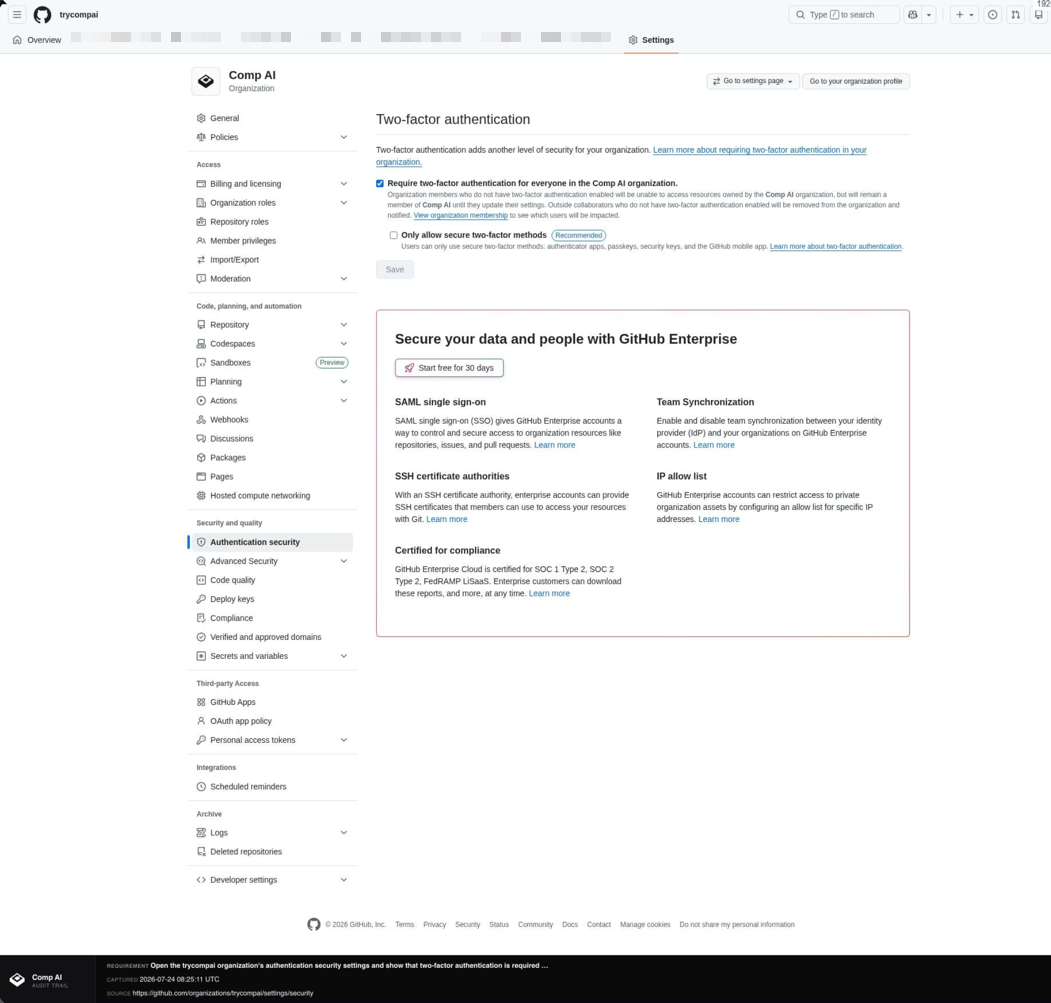
Every run produces an audit-ready screenshot, stamped with the requirement, source, and timestamp.
Why it’s powerful
- It reaches evidence nothing else can. Plenty of tools have no API or integration — Browser Automations sign in and screenshot the page directly, so you can prove a control that would otherwise be a manual screenshot.
- It handles 2FA on its own. Give it the authenticator setup key once and it generates the codes itself, so scheduled runs never wait on your phone.
- It stays fresh without you. When a session expires, it re-signs in on its own — evidence keeps updating on schedule instead of going stale between audits.
- It’s auditor-ready by default. Every capture is stamped with the requirement, source, and timestamp, and can carry a pass/fail verdict.
What you can do
- Collect evidence from web apps that have no API or integration.
- Sign in on a schedule, including 2FA — Comp AI generates the one-time code for you.
- Watch a run live and take over in the browser if a step needs a human.
- Get an audit-ready screenshot stamped with the source and timestamp, plus an optional pass/fail check.
- Manage every vendor login in one place under Settings → Browser connections.
How it works
There are three parts:- Connections — the vendor websites and optional logins saved under Settings → Browser connections.
- Browser evidence — the automations that use those connections, created inside an evidence task.
- Schedule — Comp AI opens the website, signs in when needed, and captures the page.
Prerequisites
Before you start, make sure:- Your organization has the feature enabled.
- You have access to Settings and to the evidence task.
- For private pages, you have the vendor login you want Comp AI to use — ideally a dedicated service account rather than a personal one. Public pages need no credentials.
Connect a vendor
You can connect from a task’s Browser evidence section, or from Settings → Browser connections → Connect a vendor.- Enter the vendor website or page URL.
- Comp AI checks the website for available sign-in methods and fields, such as email, username, or workspace.
- At Sign in (optional), choose a stored login, single sign-on (SSO), or Continue without signing in. The last option lets the automation use whatever the website makes available without a login.
- For a stored login, enter the username, password, and any required extra fields. For SSO, Comp AI opens your identity provider so you can finish signing in there. Comp AI opens a live browser. If a step needs you — a 2FA prompt, an email code — you can take over in the same browser and hand it back.
Unattended 2FA
This is what makes scheduled runs truly hands-off. If your login uses an authenticator app, give Comp AI the setup key once, and it generates the rotating 6-digit codes itself — so scheduled runs never wait on your phone.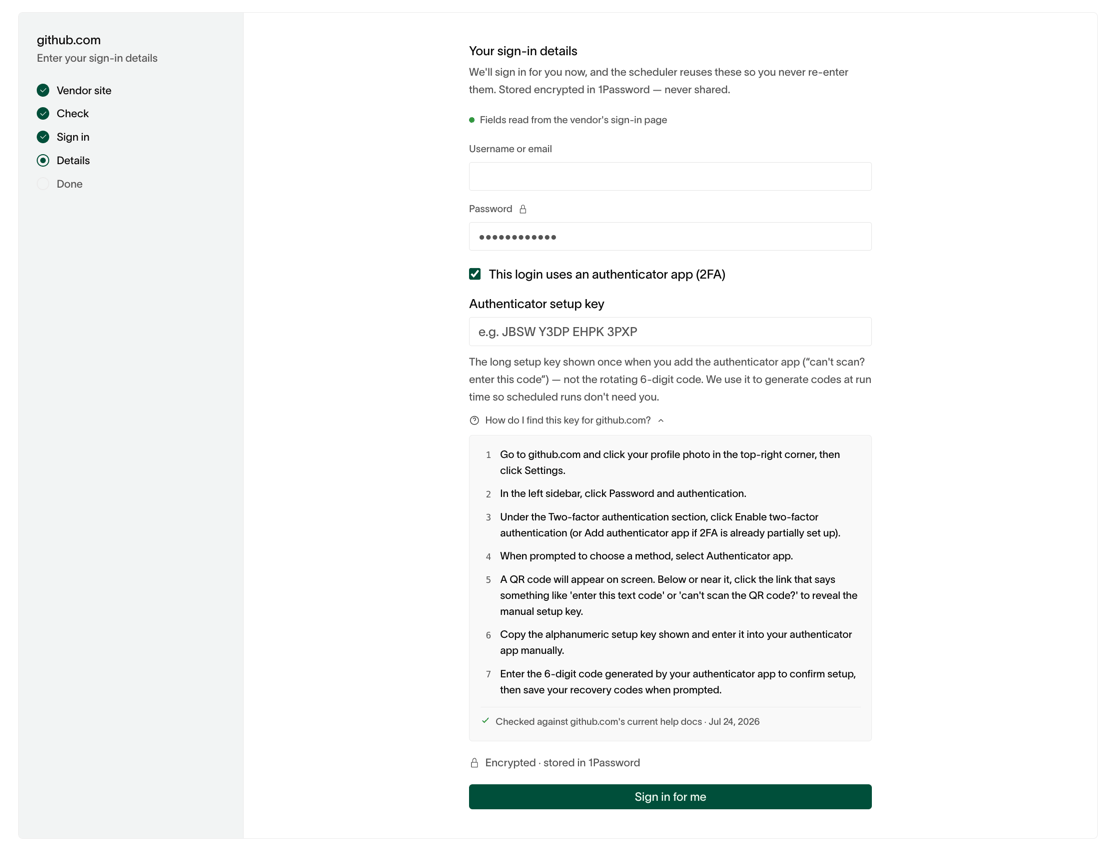
The setup-key field, with per-vendor steps — 'How do I find this key?' — generated from the vendor's current help docs.
- Enter the setup key, not the code. The setup key is the long, one-time key shown when you add an authenticator app (the “can’t scan? enter this code” option) — not the rotating 6-digit code your app displays.
- Not sure where to find it? Select “How do I find this key?” next to the field. Comp AI shows the steps for your specific vendor, checked against its current help docs.
- You can also turn this on later — open the connection under Settings → Browser connections and add the authenticator key without re-entering your password.
Create a browser evidence automation
Inside an evidence task, open the Browser evidence section and select New evidence. Use a saved connection, or connect a new vendor (see Connect a vendor). Sign-in is optional within that connection flow. Saved logins are reused, so a connected vendor needs no new sign-in. Then:- Describe what to capture in plain English — for example, “Open the organization’s security settings and show that two-factor authentication is required for all members.”
- (Optional) Add a pass/fail check — for example, “Two-factor authentication is required for everyone.” Without one, the run captures a screenshot only.
- Test it. Watch the automation run live, then review the screenshot and result before you commit.
- Save. It now runs automatically on the task’s schedule — Daily, Weekly, Monthly, Quarterly, or Yearly, your choice — and keeps the evidence current. You can also run it on demand any time.
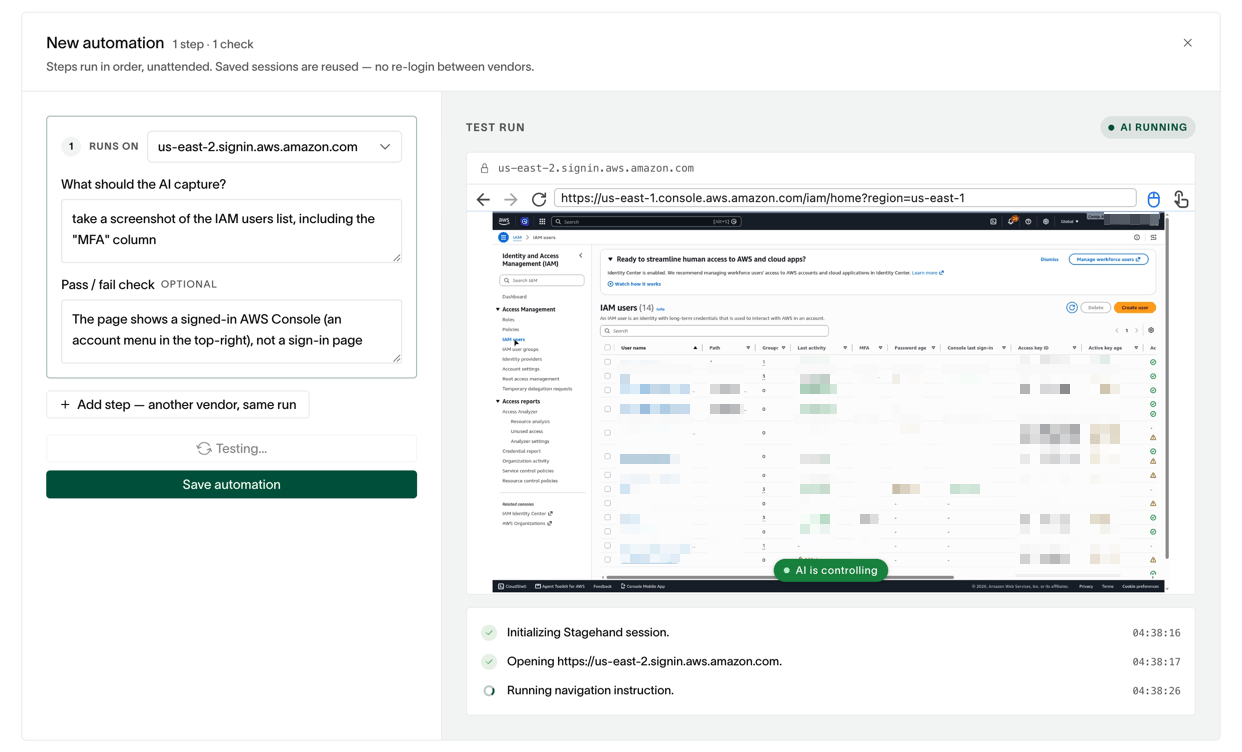
Testing an instruction — watch the AI drive a real browser live, then review the screenshot and verdict before saving.
Public pages
A step without sign-in opens in a fresh browser with no saved session and never tries to sign in, even if the page shows a “Sign in” button. Choose Continue without signing in in the connection flow to save a reusable No sign-in connection. This choice is available even when the website offers or requires sign-in for other pages. An existing signed-in connection for the same website stays separate. You can also choose No sign-in in an automation step’s connection picker and enter the page URL without saving a connection. The automation and its screenshots are kept as evidence like any other.Schedule and manual runs
Once saved, an automation runs automatically on a schedule — you don’t have to trigger it. You choose how often: set the cadence to Daily, Weekly, Monthly, Quarterly, or Yearly from the schedule control in the Browser evidence header. One cadence applies to all the browser evidence on that task, so a task’s proof refreshes together. You can change it any time. Need proof right now? Run any automation on demand — its screenshot and verdict appear in the row as soon as it finishes, without waiting for the next scheduled run. On each run — scheduled or manual:- Comp AI signs in (or, for a public page, opens it directly), navigates to the page you described, and captures a screenshot stamped with the requirement, source URL, and capture time. If you added a check, it records a pass or fail with a short reason.
- If the saved session has expired, Comp AI re-signs in on its own — using the stored login and a freshly generated 2FA code. You don’t have to do anything.
- If it hits something only a person can clear — a captcha, a “verify it’s you” prompt, or an SSO/passkey step — the run pauses and the connection is flagged Needs reconnect, with a one-click Reconnect.
Manage your connections
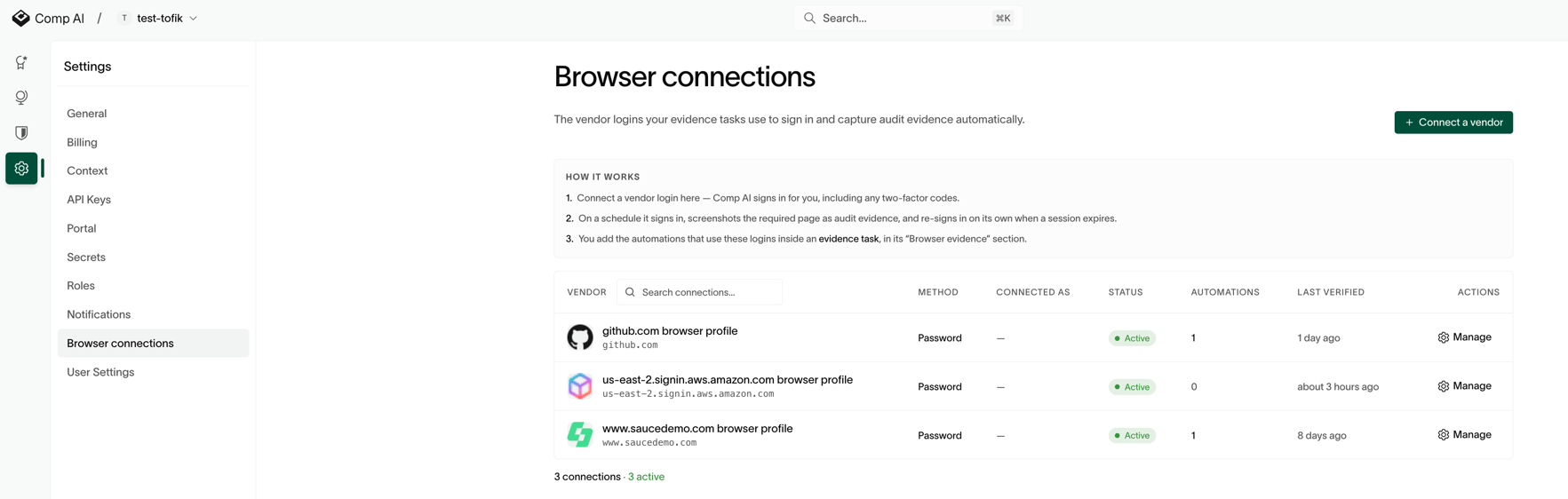
Every vendor login in one place — with health status, search, and per-connection actions.
- Connect a vendor directly, without starting from an evidence task.
- See every connection with its status and sign-in method, including No sign-in connections.
- Search and page through them when you have many.
- Reconnect, rename, or change the login.
- Turn Automatic 2FA on or off, or replace the authenticator key.
- Remove a connection you no longer need.
Best practices
- Use a dedicated service account and a dedicated MFA device for each automation.
- Point each automation at the specific page or setting so the screenshot shows just that, not a long list.
- Prefer a direct sign-in or settings URL — runs are faster and steadier when they start close to the target.
- Keep automations meaningful: pair each with a pass/fail check where the requirement is clear.
Troubleshooting
A connection says “Needs reconnect”
The saved session expired or a login step needs a human
A connection says “Needs reconnect”
The saved session expired or a login step needs a human
The steps for finding my authenticator key look generic
Vendor-specific vs. general guidance
The steps for finding my authenticator key look generic
Vendor-specific vs. general guidance
The run paused for a captcha or “verify it's you”
Challenges that require a person
The run paused for a captcha or “verify it's you”
Challenges that require a person
I don't see Browser connections in Settings
Feature access and visibility
I don't see Browser connections in Settings
Feature access and visibility
Support
If you need help with Browser Automations:- Contact support at support@trycomp.ai
- Join our Discord community