> ## Documentation Index
> Fetch the complete documentation index at: https://www.trycomp.ai/docs/llms.txt
> Use this file to discover all available pages before exploring further.
# Comp AI Device Agent
> Install the Comp AI Device Agent to monitor endpoint encryption, antivirus, password policy, and screen-lock compliance.
### About Comp AI Device Agent
Comp AI Device Agent is a lightweight desktop application that runs in your system tray and automatically monitors your device's security compliance. It checks your device configuration every hour and reports the results to your organization's Comp AI portal.
The agent checks four security areas:
| Security Check | What It Verifies |
| ------------------- | ---------------------------------------------------------------------- |
| **Disk Encryption** | FileVault (macOS), BitLocker (Windows), or LUKS (Linux) is enabled |
| **Antivirus** | Active antivirus protection (XProtect, Windows Defender, ClamAV, etc.) |
| **Password Policy** | Minimum 8-character password enforced at the OS level |
| **Screen Lock** | Automatic screen lock activates within 15 minutes of inactivity |
Your device is **compliant** when all four checks pass.
The agent runs silently in your system tray and uses minimal system resources. It does not collect
personal data, browsing history, or file contents.
### System Requirements
| Requirement | Details |
| --------------------- | --------------------------------------------- |
| **Operating Systems** | macOS 14+, Windows 10+, Linux (Ubuntu 20.04+) |
| **Memory** | 512MB RAM minimum |
| **Storage** | 200MB available disk space |
### Installation
Log in to your organization's [Employee Portal](https://portal.trycomp.ai) and navigate to the **Device Agent** task. Click **Download Agent** to get the installer for your operating system.
* **macOS**: Downloads a `.dmg` file. If you have an Apple Silicon Mac (M1/M2/M3/M4), the portal selects the correct version automatically. You can also switch between Apple Silicon and Intel using the dropdown.
* **Windows**: Downloads a `.exe` installer.
* **Linux**: Downloads a `.deb` package.
**macOS**: Double-click the downloaded `.dmg` file and drag the Comp AI Device Agent to your Applications folder.
**Windows**: Double-click the downloaded `.exe` file and follow the installation wizard.
**Linux**: Install the downloaded `.deb` package using your package manager or by double-clicking it:
```bash theme={null}
sudo dpkg -i CompAI-Device-Agent-amd64.deb
```
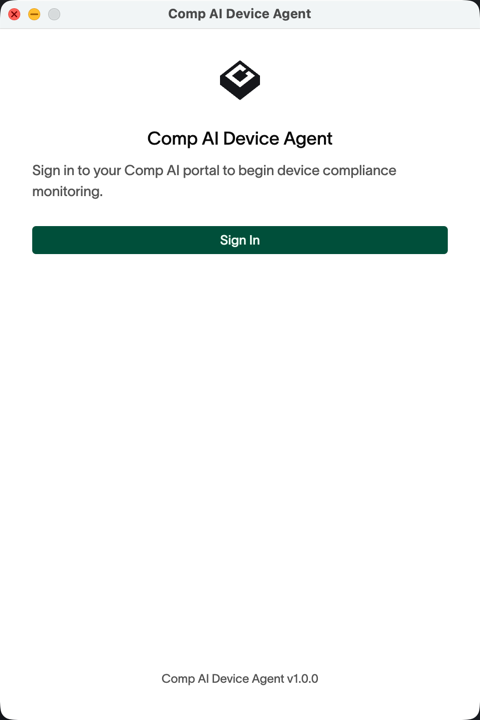
After installation, the agent opens a sign-in window. Log in with your work email using the same method you use for the Employee Portal (email OTP, Google, or Microsoft).
 Once signed in, the agent automatically:
1. Registers your device with your organization(s)
2. Runs the first compliance check immediately
3. Starts checking every hour in the background
### Using the Device Agent
After signing in, the agent lives in your system tray (menu bar on macOS, system tray on Windows/Linux). Click the tray icon to open the status window.
Once signed in, the agent automatically:
1. Registers your device with your organization(s)
2. Runs the first compliance check immediately
3. Starts checking every hour in the background
### Using the Device Agent
After signing in, the agent lives in your system tray (menu bar on macOS, system tray on Windows/Linux). Click the tray icon to open the status window.
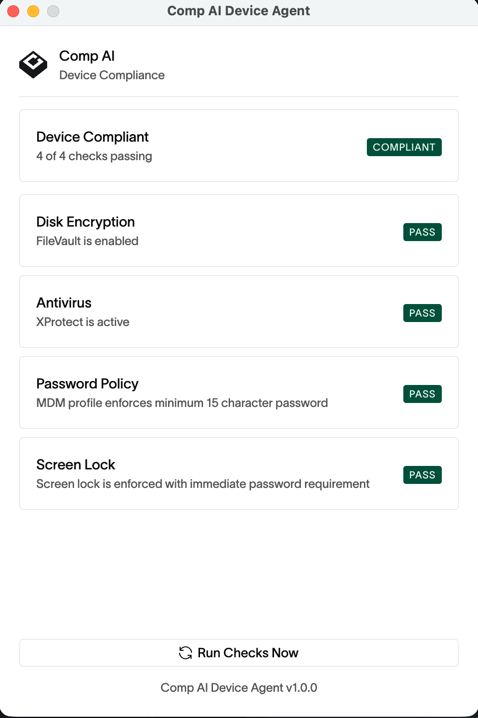 The status window shows:
* **Compliance status** — whether your device is compliant or needs attention
* **Individual checks** — each of the four security checks with Pass/Fail status
* **Remediation options** — for any failing check, the agent offers a way to fix it
#### Tray Icon Status
| Icon Color | Meaning |
| ---------- | ---------------------------------------------------- |
| **Green** | Device is compliant — all checks passing |
| **Red** | Device is non-compliant — one or more checks failing |
| **Gray** | Agent is not signed in or checks are loading |
#### Fixing Failing Checks
When a check fails, the agent provides remediation options depending on what can be done automatically:
| Option | Description |
| ----------------- | -------------------------------------------------------------- |
| **Fix** | The agent fixes the issue automatically |
| **Fix (Admin)** | The agent fixes it but may prompt for your system password |
| **Open Settings** | Opens the relevant OS settings pane so you can fix it manually |
| **View Guide** | Shows step-by-step instructions to resolve the issue |
After fixing a failing check, click **Run Checks Now** to verify the fix immediately instead of
waiting for the next hourly check.
#### Tray Menu Options
Right-click (or click on macOS) the tray icon to access:
* **Run Checks Now** — trigger an immediate compliance check
* **View Details** — open the status window
* **Start at Login** — toggle whether the agent launches automatically when you log in (enabled by default)
* **Sign Out** — sign out of the agent
* **Quit** — close the agent completely
If you quit or sign out of the agent, your device will stop reporting compliance status to your
organization. Your security administrator may follow up if your device stops checking in.
### Verifying on the Portal
After the agent runs its first check, you can verify your device compliance status on the Employee Portal. The **Device Agent** task shows your device name, platform, and whether all security checks are passing.
The portal updates automatically — it polls your device status every 30 seconds while the page is open.
### Troubleshooting
* Make sure you're using the same email address you use for the Employee Portal
* Check your internet connection
* Try quitting the agent completely and reopening it
* If using Google or Microsoft sign-in, make sure popups are not blocked
* Click **Run Checks Now** to refresh the results
* Review the failing check details — the agent shows what it detected
* Use the remediation option provided (Fix, Open Settings, or View Guide)
* Some changes (like enabling FileVault) require a restart to take effect
* **macOS**: Look in the menu bar at the top of your screen. The icon may be hidden — check the overflow area (click the `>>` or similar)
* **Windows**: Click the up arrow in the system tray to see hidden icons
* **Linux**: Check your desktop environment's system tray or notification area
* The agent may need to be reopened from your Applications folder
* Wait up to 30 seconds for the portal to refresh
* Click **Run Checks Now** in the agent to trigger a fresh report
* Check that the agent is signed in (tray icon should be green, not gray)
### Migrating from FleetDM
If your device previously had the FleetDM agent (fleetd) installed, you should uninstall it after setting up the new Comp AI Device Agent. The new agent fully replaces FleetDM, and having both running is unnecessary.
Follow the official uninstall guide for your platform: [How to uninstall fleetd](https://fleetdm.com/guides/how-to-uninstall-fleetd)
### Manual Evidence Collection
For users who cannot install the agent on their device, manual evidence of device settings is required. Below are the required pieces of evidence and where to obtain them.
#### Windows 10 & 11
**Enable BitLocker**
1. Press **Start** → type **Manage BitLocker** → open it.\
Take a screenshot of the BitLocker Drive Encryption window showing "On" for the C: drive.
2. Select the drive (usually C:) → click **Turn on BitLocker**.
3. Save the recovery key to Microsoft Account / USB / secure location.
4. Restart if prompted.
**Screen Lock after 15 Minutes**
1. Press **Start** → **Settings** → **Personalization** → **Lock screen**.
2. Scroll down → click **Screen timeout settings**.\
Take a screenshot showing the screen timeout set to 15 minutes.
3. Set **Screen turns off** = 15 minutes.
4. In **Settings** → **Accounts** → **Sign-in options** → ensure **Require sign-in** is set to *"When PC wakes up from sleep"*.\
Take a screenshot of the Sign-in Options page showing this setting.
**Minimum Password Length (Local Policy)**
1. Press Win + R, type `secpol.msc`, press Enter.
2. Go to **Account Policies** → **Password Policy**.
3. Set **Minimum password length** = 8+.\
Take a screenshot of the Password Policy window with "Minimum password length" = 8 or more.
*(If using Microsoft/AD/Azure, enforce via policy centrally and screenshot the policy compliance in the admin portal.)*
**Automatic Security Updates**
1. **Settings** → **Update & Security** → **Windows Update**.
2. Select **Advanced options** → make sure Automatic updates are enabled.\
Take a screenshot of the Windows Update settings page showing automatic updates turned on.
**Antivirus (Windows Defender)**
1. **Settings** → **Update & Security** → **Windows Security**.
2. Open **Virus & threat protection** → ensure **Real-time protection** is on.\
Take a screenshot of the Windows Security window showing Real-time protection is ON.
Evidence gathered manually will be uploaded as a comment and attachment to the "Secure Devices" and "Device List" tasks with the user's email of the device the evidence is for.
#### macOS (Monterey, Ventura, Sonoma, Sequoia)
**Enable FileVault**
1. Open **System Settings** (or **System Preferences** in older versions).
2. Go to **Privacy & Security** → **FileVault**.
3. Click **Turn On FileVault** → enter password.
4. Record recovery key.\
Take a screenshot of the FileVault settings page showing "FileVault is enabled for the disk."
**Screen Auto-lock (15 min)**
1. **System Settings** → **Lock Screen**.
2. Set **Start screen saver when inactive** = 15 minutes.\
Take a screenshot showing the setting at 15 minutes.
3. Set **Require password after sleep or screen saver begins** = *Immediately*.\
Take a screenshot showing "Require password immediately" is selected.
**Minimum Password Length**
1. Native macOS UI doesn't enforce this; requires **Terminal** or **MDM**.
2. `pwpolicy -setglobalpolicy "minChars=8"`
3. If set via Terminal, take a screenshot of the command output confirming the policy.
4. If enforced by MDM (Jamf, Intune, etc.), screenshot the compliance screen from the MDM portal.
**Automatic Security Updates**
1. **System Settings** → **General** → **Software Update**.
2. Click **Automatic Updates** → enable all options (Install Security Responses & System files, etc.).\
Take a screenshot of the Automatic Updates options screen with all toggles enabled.
**Antivirus (XProtect built-in)**
1. macOS automatically runs **XProtect** in the background.
2. Simply ensure macOS is **fully updated**.\
Take a screenshot of the Software Update page showing the Mac is up to date.
Evidence gathered manually will be uploaded as a comment and attachment to the "Secure Devices" and "Device List" tasks with the user's email of the device the evidence is for.
#### Ubuntu 20.04+ / Debian-based
**Enable LUKS Disk Encryption**
1. LUKS encryption is typically configured during OS installation.
2. To verify, run: `lsblk -o NAME,TYPE,FSTYPE | grep crypt`\
Take a screenshot showing the encrypted volume.
**Screen Lock (15 min)**
1. Open **Settings** → **Privacy** → **Screen Lock**.
2. Set **Automatic Screen Lock Delay** = 15 minutes.\
Take a screenshot showing the screen lock delay setting.
**Password Policy**
1. Check minimum password length: `grep PASS_MIN_LEN /etc/login.defs`
2. Ensure it's set to 8 or higher.\
Take a screenshot of the output.
**Antivirus**
1. Verify ClamAV or another antivirus is installed and running:
```bash theme={null}
systemctl status clamav-daemon
```
2. Alternatively, show AppArmor or SELinux is enforcing:
```bash theme={null}
sudo aa-status # AppArmor
getenforce # SELinux
```
Take a screenshot of the output showing active protection.
Evidence gathered manually will be uploaded as a comment and attachment to the "Secure Devices" and "Device List" tasks with the user's email of the device the evidence is for.
### Support
If you have questions or run into issues with the Device Agent, contact your IT administrator or reach out to us at [hello@trycomp.ai](mailto:hello@trycomp.ai).
The status window shows:
* **Compliance status** — whether your device is compliant or needs attention
* **Individual checks** — each of the four security checks with Pass/Fail status
* **Remediation options** — for any failing check, the agent offers a way to fix it
#### Tray Icon Status
| Icon Color | Meaning |
| ---------- | ---------------------------------------------------- |
| **Green** | Device is compliant — all checks passing |
| **Red** | Device is non-compliant — one or more checks failing |
| **Gray** | Agent is not signed in or checks are loading |
#### Fixing Failing Checks
When a check fails, the agent provides remediation options depending on what can be done automatically:
| Option | Description |
| ----------------- | -------------------------------------------------------------- |
| **Fix** | The agent fixes the issue automatically |
| **Fix (Admin)** | The agent fixes it but may prompt for your system password |
| **Open Settings** | Opens the relevant OS settings pane so you can fix it manually |
| **View Guide** | Shows step-by-step instructions to resolve the issue |
After fixing a failing check, click **Run Checks Now** to verify the fix immediately instead of
waiting for the next hourly check.
#### Tray Menu Options
Right-click (or click on macOS) the tray icon to access:
* **Run Checks Now** — trigger an immediate compliance check
* **View Details** — open the status window
* **Start at Login** — toggle whether the agent launches automatically when you log in (enabled by default)
* **Sign Out** — sign out of the agent
* **Quit** — close the agent completely
If you quit or sign out of the agent, your device will stop reporting compliance status to your
organization. Your security administrator may follow up if your device stops checking in.
### Verifying on the Portal
After the agent runs its first check, you can verify your device compliance status on the Employee Portal. The **Device Agent** task shows your device name, platform, and whether all security checks are passing.
The portal updates automatically — it polls your device status every 30 seconds while the page is open.
### Troubleshooting
* Make sure you're using the same email address you use for the Employee Portal
* Check your internet connection
* Try quitting the agent completely and reopening it
* If using Google or Microsoft sign-in, make sure popups are not blocked
* Click **Run Checks Now** to refresh the results
* Review the failing check details — the agent shows what it detected
* Use the remediation option provided (Fix, Open Settings, or View Guide)
* Some changes (like enabling FileVault) require a restart to take effect
* **macOS**: Look in the menu bar at the top of your screen. The icon may be hidden — check the overflow area (click the `>>` or similar)
* **Windows**: Click the up arrow in the system tray to see hidden icons
* **Linux**: Check your desktop environment's system tray or notification area
* The agent may need to be reopened from your Applications folder
* Wait up to 30 seconds for the portal to refresh
* Click **Run Checks Now** in the agent to trigger a fresh report
* Check that the agent is signed in (tray icon should be green, not gray)
### Migrating from FleetDM
If your device previously had the FleetDM agent (fleetd) installed, you should uninstall it after setting up the new Comp AI Device Agent. The new agent fully replaces FleetDM, and having both running is unnecessary.
Follow the official uninstall guide for your platform: [How to uninstall fleetd](https://fleetdm.com/guides/how-to-uninstall-fleetd)
### Manual Evidence Collection
For users who cannot install the agent on their device, manual evidence of device settings is required. Below are the required pieces of evidence and where to obtain them.
#### Windows 10 & 11
**Enable BitLocker**
1. Press **Start** → type **Manage BitLocker** → open it.\
Take a screenshot of the BitLocker Drive Encryption window showing "On" for the C: drive.
2. Select the drive (usually C:) → click **Turn on BitLocker**.
3. Save the recovery key to Microsoft Account / USB / secure location.
4. Restart if prompted.
**Screen Lock after 15 Minutes**
1. Press **Start** → **Settings** → **Personalization** → **Lock screen**.
2. Scroll down → click **Screen timeout settings**.\
Take a screenshot showing the screen timeout set to 15 minutes.
3. Set **Screen turns off** = 15 minutes.
4. In **Settings** → **Accounts** → **Sign-in options** → ensure **Require sign-in** is set to *"When PC wakes up from sleep"*.\
Take a screenshot of the Sign-in Options page showing this setting.
**Minimum Password Length (Local Policy)**
1. Press Win + R, type `secpol.msc`, press Enter.
2. Go to **Account Policies** → **Password Policy**.
3. Set **Minimum password length** = 8+.\
Take a screenshot of the Password Policy window with "Minimum password length" = 8 or more.
*(If using Microsoft/AD/Azure, enforce via policy centrally and screenshot the policy compliance in the admin portal.)*
**Automatic Security Updates**
1. **Settings** → **Update & Security** → **Windows Update**.
2. Select **Advanced options** → make sure Automatic updates are enabled.\
Take a screenshot of the Windows Update settings page showing automatic updates turned on.
**Antivirus (Windows Defender)**
1. **Settings** → **Update & Security** → **Windows Security**.
2. Open **Virus & threat protection** → ensure **Real-time protection** is on.\
Take a screenshot of the Windows Security window showing Real-time protection is ON.
Evidence gathered manually will be uploaded as a comment and attachment to the "Secure Devices" and "Device List" tasks with the user's email of the device the evidence is for.
#### macOS (Monterey, Ventura, Sonoma, Sequoia)
**Enable FileVault**
1. Open **System Settings** (or **System Preferences** in older versions).
2. Go to **Privacy & Security** → **FileVault**.
3. Click **Turn On FileVault** → enter password.
4. Record recovery key.\
Take a screenshot of the FileVault settings page showing "FileVault is enabled for the disk."
**Screen Auto-lock (15 min)**
1. **System Settings** → **Lock Screen**.
2. Set **Start screen saver when inactive** = 15 minutes.\
Take a screenshot showing the setting at 15 minutes.
3. Set **Require password after sleep or screen saver begins** = *Immediately*.\
Take a screenshot showing "Require password immediately" is selected.
**Minimum Password Length**
1. Native macOS UI doesn't enforce this; requires **Terminal** or **MDM**.
2. `pwpolicy -setglobalpolicy "minChars=8"`
3. If set via Terminal, take a screenshot of the command output confirming the policy.
4. If enforced by MDM (Jamf, Intune, etc.), screenshot the compliance screen from the MDM portal.
**Automatic Security Updates**
1. **System Settings** → **General** → **Software Update**.
2. Click **Automatic Updates** → enable all options (Install Security Responses & System files, etc.).\
Take a screenshot of the Automatic Updates options screen with all toggles enabled.
**Antivirus (XProtect built-in)**
1. macOS automatically runs **XProtect** in the background.
2. Simply ensure macOS is **fully updated**.\
Take a screenshot of the Software Update page showing the Mac is up to date.
Evidence gathered manually will be uploaded as a comment and attachment to the "Secure Devices" and "Device List" tasks with the user's email of the device the evidence is for.
#### Ubuntu 20.04+ / Debian-based
**Enable LUKS Disk Encryption**
1. LUKS encryption is typically configured during OS installation.
2. To verify, run: `lsblk -o NAME,TYPE,FSTYPE | grep crypt`\
Take a screenshot showing the encrypted volume.
**Screen Lock (15 min)**
1. Open **Settings** → **Privacy** → **Screen Lock**.
2. Set **Automatic Screen Lock Delay** = 15 minutes.\
Take a screenshot showing the screen lock delay setting.
**Password Policy**
1. Check minimum password length: `grep PASS_MIN_LEN /etc/login.defs`
2. Ensure it's set to 8 or higher.\
Take a screenshot of the output.
**Antivirus**
1. Verify ClamAV or another antivirus is installed and running:
```bash theme={null}
systemctl status clamav-daemon
```
2. Alternatively, show AppArmor or SELinux is enforcing:
```bash theme={null}
sudo aa-status # AppArmor
getenforce # SELinux
```
Take a screenshot of the output showing active protection.
Evidence gathered manually will be uploaded as a comment and attachment to the "Secure Devices" and "Device List" tasks with the user's email of the device the evidence is for.
### Support
If you have questions or run into issues with the Device Agent, contact your IT administrator or reach out to us at [hello@trycomp.ai](mailto:hello@trycomp.ai).